Script Library109 scripts · 19 in useSearch scripts+ New Script…
All109
Keyboard28
System11
Microphone4
Meetings8
Keynote6
PowerPoint6
Logic Pro8
Music and Spot…14
QLab5
OBS7
Utilities12
Mine
My Scripts0
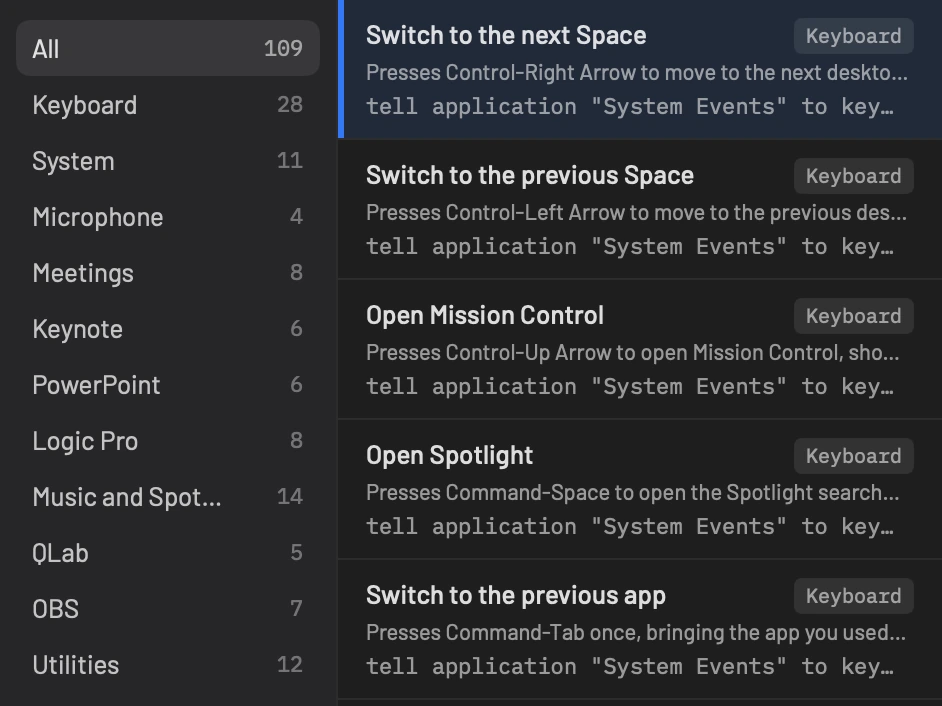
Switch to the next SpaceKeyboardPresses Control-Right Arrow to move to the next desktop Space.tell application "System Events" to key code 124 using {control down}
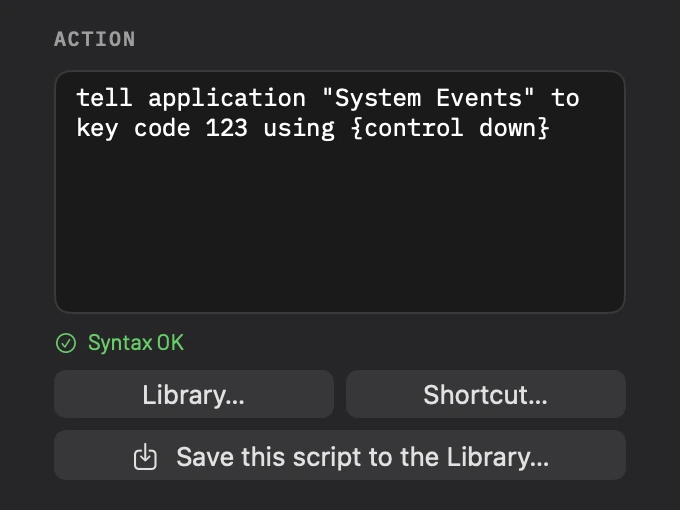
Switch to the previous SpaceKeyboardPresses Control-Left Arrow to move to the previous desktop Space.tell application "System Events" to key code 123 using {control down}
Open Mission ControlKeyboardPresses Control-Up Arrow to open Mission Control, showing every open window and Space. Running it again puts the windows back.tell application "System Events" to key code 126 using {control down}
Open SpotlightKeyboardPresses Command-Space to open the Spotlight search bar.tell application "System Events" to key code 49 using {command down}
Switch to the previous appKeyboardPresses Command-Tab once, bringing the app you used last to the front.tell application "System Events" to key code 48 using {command down}
Play or pauseMedia keysSends the play or pause key. macOS passes it to whichever app played last, and opens Music if nothing has played.tell application id "com.miditoapplescript.app" to press media key "play pause"
Skip to the next trackMedia keysSends the next track key. macOS passes it to whichever app played last.tell application id "com.miditoapplescript.app" to press media key "next"
Go to the previous trackMedia keysSends the previous track key. macOS passes it to whichever app played last.tell application id "com.miditoapplescript.app" to press media key "previous"
Turn the volume up one stepMedia keysSends the volume up key. One press is one of the Mac’s sixteen volume steps.tell application id "com.miditoapplescript.app" to press media key "volume up"
Turn the volume down one stepMedia keysSends the volume down key. One press is one of the Mac’s sixteen volume steps.tell application id "com.miditoapplescript.app" to press media key "volume down"
Switch to the next Space
Built-in · Keyboard · Used by 1 mapping
Presses Control-Right Arrow to move to the next desktop Space.
Script
tell application "System Events" to key code 124 using {control down}
The key press goes to macOS, not to the app in front. Needs Accessibility permission.
Used by
NOTE ON…Move Right →Show
Use in New MappingCopyCopy to My Scripts
Mappings26
Script Library109
Live Monitor
Profiles+
Conference···
FOH···
Show···
Studio···
5 devices connected
Arturia MiniLab mkII
IAC Driver Bus 1
Logic Pro Virtual Out
+2 more
Live MonitorAll eventsMatched onlyAll devices Clear
TimeTypeInputValueDeviceMatched mapping
RUN DETAILLIVE
NOTE ON 1Pause from SQSQ - MIDI Outdone in 169 ms
tell application "Music" to pause
Mappings26
Script Library109
Live Monitor
Profiles+
Conference···
FOH···
Show···
Studio···
5 devices connected
Arturia MiniLab mkII
IAC Driver Bus 1
Logic Pro Virtual Out
+2 more
Mappings26 · Show+ New Mapping
OnTriggerNameRunsDevice
NOTE ON 39Mission ControlNote Ontell application "System Events" to key code 126 using {control down}X-TOU…MINI
NOTE ON 43Log Cue TimeNote Onset stamp to do shell script "date '+%Y-%m-%d %H:%M:%S'"any device
NOTE ON 46House Open CallNote Onsay "Two minutes to house open"X-TOU…MINI
NOTE ON 44Print Running OrderNote Ontell application "Preview" to print document 1X-TOU…MINI
NOTE ON 47Mute MacNote Onset volume with output mutedX-TOU…MINI
NOTE OFF 47Unmute MacNote Offset volume without output mutedX-TOU…MINI
NOTE ON 24Play or Pause MusicNote Ontell application "Music" to playpauseX-TOU…MINI
NOTE ON 45Lock ScreenDisabledtell application "System Events" to key code 12 using {command down, control down}X-TOU…MINI
NOTE ON 0Walk In from SQNote Ontell application "Music" play playlist "Tour walk in" end tellSQ -…DI Out
NOTE ON 1Pause from SQNote Ontell application "Music" to pauseSQ -…DI Out
26 mappings · 25 enabledLast fired · Pause from SQ · 1 min
Mac Output Volume
CC 10
▶ Test
Mapping
Mac Output Volume
Trigger
Control Change
10MIDI Learn
Any device
Value
AbsoluteRelative
0to127
Values outside the range are ignored.
on entering the range
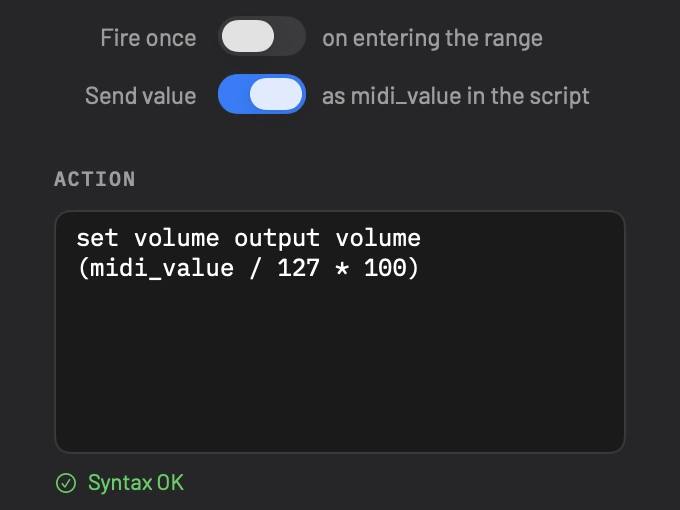
as midi_value in the script
Action
set volume output volume (midi_value / 127 * 100)
Syntax OK
Library…Shortcut…
Save this script to the Library…
AdvancedTimeout
NotesX-TOUCH Layer B fader
RevertSave
Turn the MIDI from your controller into keystrokes and AppleScript
Try it for 20 daysBuy for $29UK buyers: US$34.80 including VATVersion 2.0.1 · macOS 13 or later · Apple Silicon and Intel
Message in. Mapping matched. Script run.
The Live Monitor shows all three.
A message arrives
Move a control to see its MIDI message, value and device in the Live Monitor.
A mapping claims it
The message is checked against your mappings, including any device and value limits you set.
The script runs
An enabled mapping runs its AppleScript when the trigger matches.
Example mappings
Put Mac controls on the hardware you already use.
New Mapping
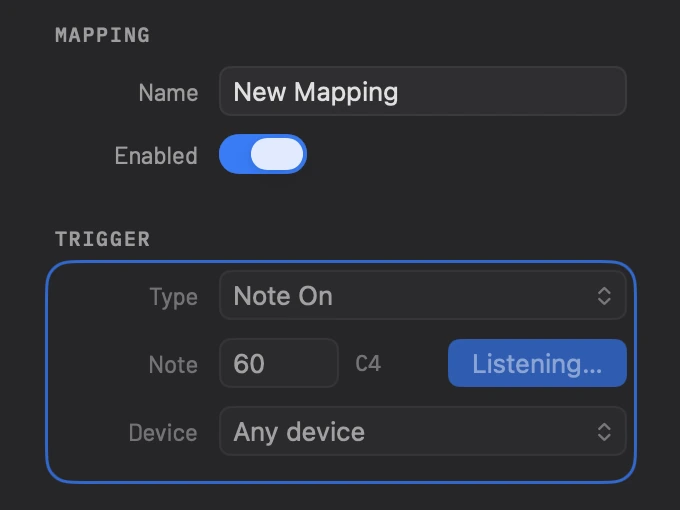
NOTE ON 60
▶ Test
Mapping
New Mapping
Trigger
Note On
60C4MIDI Learn
Any device
Value
AbsoluteRelative
0to127
Values outside the range are ignored.
on entering the range
as midi_value in the script
Action
Nothing to run yet.
Library…Shortcut…
Save this script to the Library…
AdvancedTimeout
NotesEmpty
RevertSave
Set Mac volume with a fader
Adjust your Mac's output volume from a physical fader. Use 'MIDI Learn' to assign the fader and turn on 'Send value'. The volume script converts its position into a volume setting.
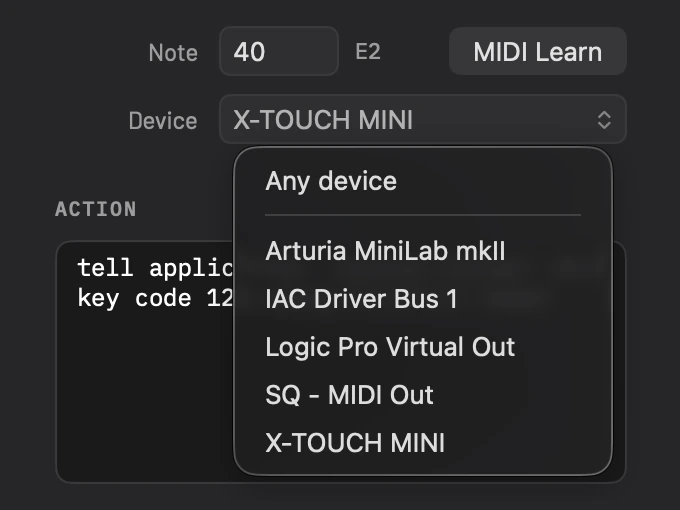
Choose a device to lock the mapping to that controller, or choose 'Any device' to listen for that message from all connected devices.
Start a playlist with a button
Start a playlist from a controller. Use 'MIDI Learn' to assign a button, then put your Music playlist's name in the script. Press the button to play that playlist.
Write your own AppleScript to choose what the button does, including actions in other scriptable Mac apps.
Switch desktops with a button
Move between spaces from a controller. Choose the next or previous desktop action from the Script Library, then use 'MIDI Learn' to assign a controller button. Press it to switch desktops.
Assign separate buttons to move left and right through your desktops.
Features
Assign keystrokes and AppleScript to your controls, then choose how each mapping responds.
Keystrokes
Put a keyboard command on a pad or button. Select 'Shortcut…' and record a keystroke, including modifiers such as Command or Shift, then assign your MIDI control. The keystroke goes to the app in front. For media keys or system actions such as Mission Control, choose a supplied Script Library entry instead of recording them.
Live values
Control a level from a fader's position. Turn on 'Send value' to make the incoming position available to your script as midi_value. Your AppleScript can convert that value into Mac output volume or Music's playback volume. During a fast sweep, newer values replace those still waiting to run, so the mapping follows the latest position without working through every intermediate value.
Script Library
Start with one of 109 supplied scripts for tasks such as changing volume, controlling Music or sending a keystroke. Choose an entry and read its requirements before assigning a control. Save your own scripts to the Library for reuse, and check Used by to see which mappings use a script.
MIDI Learn
Assign a control by moving it. Select 'MIDI Learn', then press a button or move a fader. MIDItoAppleScript captures the trigger and selects the device that sent it. Check whether you captured the press or release before saving. They can send different messages and trigger different actions.
Device matching
Use several connected controllers together and choose which one each mapping listens to. 'MIDI Learn' selects the device you used, so an identical note from another controller will not trigger that mapping. Choose 'Any device' when you want the same trigger to work across controllers. The message and value still have to match the mapping.
Profiles
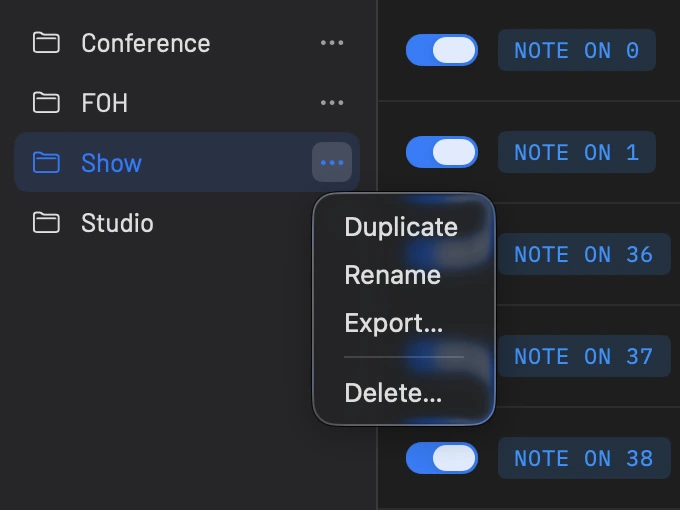
Give the same controller different jobs with separate sets of mappings. Keep music controls in one profile and presentation controls in another, then select the set you need from the sidebar or MIDItoAppleScript's menu bar icon. Duplicate a profile to use an existing setup as the starting point for another job.
Relative encoders
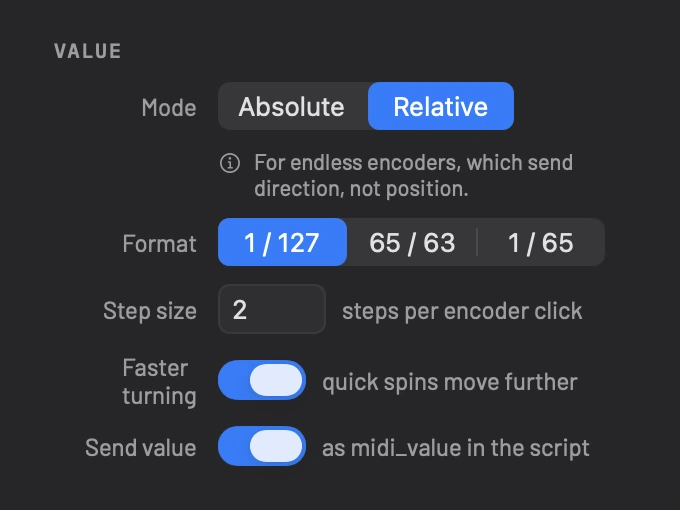
Use an endless knob to raise or lower a value, such as your Mac's output volume. These relative encoders send direction rather than a fixed position. Choose 'Relative' mode and the format your controller sends, then set 'Step size' for each click. Turn on 'Faster turning' for larger changes when you turn quickly, and 'Send value' to pass the resulting position to your script.
Ranges and Fire once
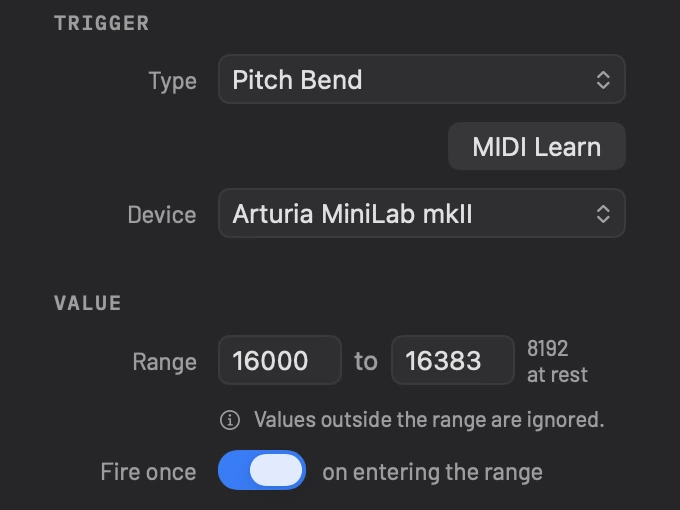
Make a control act only within part of its travel. Set a range to ignore values outside it, then turn on 'Fire once' to run the script on entering that range. For example, a pitch strip can skip to the next track when flicked to the top. It must leave the range before another entry can fire again.
Price
$29
UK buyers pay $34.80 including VAT. Elsewhere, any VAT or sales tax your country charges is added at checkout. Card payments are taken in US dollars.
The sale is through Gumroad, with licence details in the terms.
Try firstThe trial is the full app for 20 days from first launch. Scripts stop when the trial ends unless you enter a licence key. Your profiles, mappings and scripts stay saved.
Your MacsThe licence is for the Macs you personally use. The price is one-off and covers version 2 and its updates.
Refunds14 days, no questions asked. Ask through the contact form.
Runs onmacOS 13 or later. Universal: Apple Silicon and Intel. Signed with an Apple Developer ID and notarised by Apple. On first use, MIDItoAppleScript asks for Accessibility permission and Automation permission for each app it controls. Licensed use needs a successful online licence check at least once every 90 days.